Key takeaways
- Looking for a drawing tablet without the Wacom name? Compare five pen displays and pen tablets from Huion, XP-Pen, Ugee and Gaomon for digital art.
Wacom built the drawing tablet market, and its name still dominates most shortlists. Yet Huion, XP-Pen, Ugee, and Gaomon now make pen displays and pen tablets that cover the same work — illustration, photo editing, animation, and note-taking — often with larger active areas and more shortcut keys. This guide covers five non-Wacom drawing tablets only. Every pick below comes from one of those four makers, and every model was checked against its Amazon listing for a current, still-selling offer.
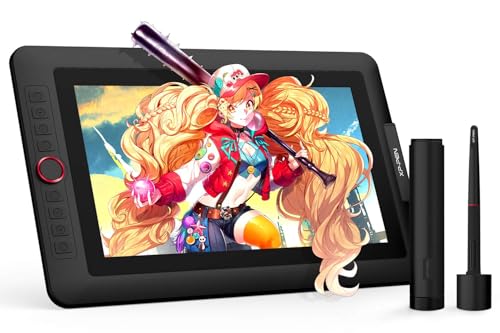
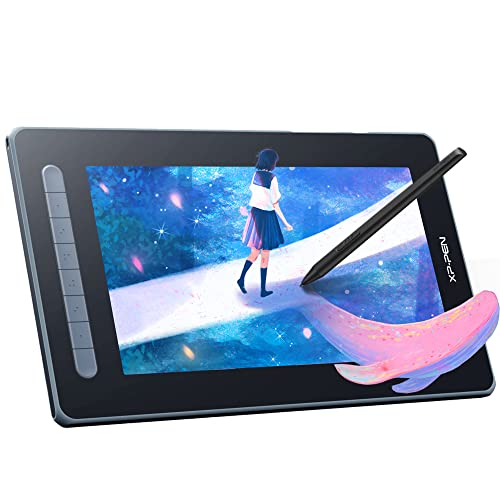
The five picks split into two kinds. Three are pen displays with a built-in screen, so you draw directly on the image. Two are screenless pen tablets, where you draw on the pad while watching your monitor. The right one depends on your desk and whether you like looking at your hand or at your screen.
Quick Picks
Our Short List of 3
- Best for: artists who draw at a desk for long sessions and want the biggest screen and the most physical controls in this group.
- Display: 13.3-inch FHD full-laminated screen, 1920 x 1080 resolution
- Color coverage: 123 percent sRGB
- Pen pressure: 8,192 levels, battery-free stylus
- Controls: red dial and 8 shortcut keys
- Best for: artists who want a portable pen display with strong color coverage, and anyone who draws on more than one computer or a Chromebook.
- Display: 11.9-inch FHD IPS fully laminated screen, 1920 x 1080 resolution
- Color coverage: 127 percent sRGB, 94 percent Adobe RGB, 90 percent NTSC
- Pen pressure: 8,192 levels, X3 Smart Chip battery-free stylus
- Initial activation force: 3 grams
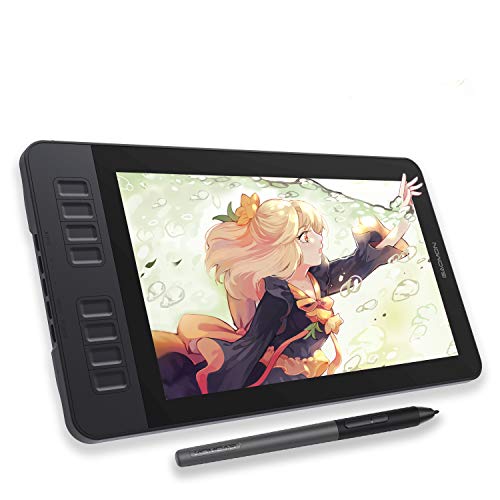
- Best for: first-time pen display buyers and hobby artists who want the simplest screen tablet in this group.
- Display: 11.6-inch FHD IPS screen
- Pen pressure: 8,192 levels, AP50 battery-free stylus
- Tilt support: yes
- Controls: 8 shortcut keys
All 5 Picks at a Glance
| Product | Specs | Action |
|---|---|---|
| 1. XP-Pen Artist 13.3 Pro |
| Check price on Amazon |
| 2. XP-Pen Artist 12 (2nd Gen) |
| Check price on Amazon |
| 3. GAOMON PD1161 |
| Check price on Amazon |
 4. UGEE M708 V3 |
| Check price on Amazon |
 5. Huion Inspiroy H1060P |
| Check price on Amazon |
If you want one short answer: the XP-Pen Artist 12 (2nd Gen) is the most balanced pen display here, the GAOMON PD1161 is the simplest way to try drawing on a screen, and the Huion Inspiroy H1060P gives screenless users the most shortcut keys of the five.
How to Choose
Pen pressure levels. Every tablet in this guide lists 8,192 levels of pen pressure, which is the current standard for this class. Pressure levels control how line weight and opacity change as you press harder or lighter. The number alone does not decide quality — the pen sensor, the initial activation force, and the driver tuning matter as much. The XP-Pen Artist 12 (2nd Gen) pairs its 8,192 levels with a 3-gram initial activation force, so light strokes register without pressing hard. If you draw with a light hand, that low activation force matters more than a bigger pressure number.
Active area. On a pen display, the active area is the screen itself: 11.6 inches on the GAOMON PD1161, 11.9 inches on the Artist 12 (2nd Gen), and 13.3 inches on the Artist 13.3 Pro. On a pen tablet, the active area is the drawing surface: 10 x 6 inches on the UGEE M708 V3 and 10 x 6.25 inches on the Huion Inspiroy H1060P. Match the active area to your monitor. A small pad mapped to a very large monitor makes the pen feel jumpy, because a short stroke covers a long distance on screen. A large pad on a small laptop screen can feel slow. Most artists settle on a pad close in shape to their monitor, and the 10 x 6-inch class maps well to common 16:9 and 16:10 screens.
Display vs non-display tablets. A pen display shows your drawing under the pen tip, which feels natural the moment you pick it up, and it helps with detail work because you watch the line form where your hand is. The trade-offs are size, weight, cables, and a screen that adds glare and warmth at high brightness. A screenless pen tablet is lighter, cheaper for the same active area, and leaves your monitor as the only screen to look at — but it takes a few days of practice before your hand and eye feel connected. Beginners who want the easiest first week usually pick a pen display. Artists who travel, or who already own a good monitor, often pick a screenless pad and put the savings toward software.
Driver and software support. Every tablet here needs a driver installed on your computer before the pressure sensitivity and shortcut keys work. Check the maker driver page for your system before buying: Windows and macOS are covered by all five, Linux is covered by the XP-Pen and Huion models, and Android and ChromeOS support varies by model. The UGEE M708 V3 and the XP-Pen Artist 12 (2nd Gen) both list Android and Chromebook support, which suits artists who sketch on a phone or a Chromebook. Keep the driver updated — an old driver is the most common cause of a pen that draws but ignores pressure. Also confirm the tablet works with the software you already use: all five work with the common drawing and photo-editing programs, including Photoshop, Clip Studio Paint, Krita, and SAI.
Color and lamination. On pen displays, look for full lamination, which bonds the glass to the panel and removes the gap between pen tip and cursor. All three pen displays here are fully laminated. Color coverage is listed as 123 percent sRGB on the Artist 13.3 Pro and 127 percent sRGB with 94 percent Adobe RGB on the Artist 12 (2nd Gen). Wider coverage helps when your work goes to print. For hobby sketching, any of the three screens is fine.
Cables and desk fit. Pen displays need a video connection as well as USB, so check what your computer offers. The Artist 12 (2nd Gen) ships with a 3-in-1 cable and also works with a single full-featured USB-C cable, which you buy separately. The Artist 13.3 Pro includes an adjustable stand in the box. Screenless pads need only one USB cable, which makes them the simplest to set up on a crowded desk.
The 5 Best Options
1. XP-Pen Artist 13.3 Pro
- Best for: artists who draw at a desk for long sessions and want the biggest screen and the most physical controls in this group.
- Display: 13.3-inch FHD full-laminated screen, 1920 x 1080 resolution
- Color coverage: 123 percent sRGB
- Pen pressure: 8,192 levels, battery-free stylus
- Controls: red dial and 8 shortcut keys
artists who draw at a desk for long sessions and want the biggest screen and the most physical controls in this group.
the 13.3-inch screen and stand take up real desk space, and the tablet needs a computer connection plus a video cable, so it is not a grab-and-go device. A few older listing crawls showed no featured offer for this model, so confirm the listing shows a live offer before ordering.
The Artist 13.3 Pro is the largest pen display in this guide, and the one that feels most like a desk workstation. Its 13.3-inch full-laminated screen keeps the pen tip close to the cursor, and the included adjustable stand lets you tilt the screen to a comfortable drawing angle instead of laying it flat. A red dial sits beside eight shortcut keys, so zoom, brush size, and undo stay under your left hand while the pen stays in your right.
Watch out for: the 13.3-inch screen and stand take up real desk space, and the tablet needs a computer connection plus a video cable, so it is not a grab-and-go device. A few older listing crawls showed no featured offer for this model, so confirm the listing shows a live offer before ordering.
2. XP-Pen Artist 12 (2nd Gen)
- Best for: artists who want a portable pen display with strong color coverage, and anyone who draws on more than one computer or a Chromebook.
- Display: 11.9-inch FHD IPS fully laminated screen, 1920 x 1080 resolution
- Color coverage: 127 percent sRGB, 94 percent Adobe RGB, 90 percent NTSC
- Pen pressure: 8,192 levels, X3 Smart Chip battery-free stylus
- Initial activation force: 3 grams
artists who want a portable pen display with strong color coverage, and anyone who draws on more than one computer or a Chromebook.
the 11.9-inch screen feels small for detailed work on large canvases, and the single USB-C cable is not included, so budget for one if you want the tidy one-cable setup. A newer third-generation Artist 12 exists, so confirm the listing says 2nd Gen before ordering.
The Artist 12 (2nd Gen) is the compact pen display of the pair, with an 11.9-inch fully laminated FHD screen that fits in a laptop bag. It uses the X3 Smart Chip stylus with a 3-gram initial activation force, which makes light strokes register cleanly, and it covers 127 percent sRGB with 94 percent Adobe RGB — the widest color coverage of the five picks. Eight hotkeys sit along the side, and it connects through the included 3-in-1 cable or a single full-featured USB-C cable.
Watch out for: the 11.9-inch screen feels small for detailed work on large canvases, and the single USB-C cable is not included, so budget for one if you want the tidy one-cable setup. A newer third-generation Artist 12 exists, so confirm the listing says 2nd Gen before ordering.
3. GAOMON PD1161
- Best for: first-time pen display buyers and hobby artists who want the simplest screen tablet in this group.
- Display: 11.6-inch FHD IPS screen
- Pen pressure: 8,192 levels, AP50 battery-free stylus
- Tilt support: yes
- Controls: 8 shortcut keys
first-time pen display buyers and hobby artists who want the simplest screen tablet in this group.
the color coverage is not stated as widely as the XP-Pen screens, so color-critical print work is better served by the Artist 12 (2nd Gen). Also note that two similar GAOMON listings circulate for this model — confirm the listing names the PD1161 with the AP50 stylus before ordering.
The GAOMON PD1161 is the most straightforward pen display here: an 11.6-inch FHD IPS screen, a battery-free AP50 stylus, and eight shortcut keys, with no dial and no extra hardware to learn. It is the pick for an artist buying a first pen display and wanting to spend the learning time on drawing rather than on setup. The screen is anti-glare, which helps in bright rooms, and the tablet weighs 1.9 lb, so it moves between desk and sofa without fuss.
Watch out for: the color coverage is not stated as widely as the XP-Pen screens, so color-critical print work is better served by the Artist 12 (2nd Gen). Also note that two similar GAOMON listings circulate for this model — confirm the listing names the PD1161 with the AP50 stylus before ordering.
4. UGEE M708 V3
- Best for: artists who want a large screenless pad for illustration, design, and sketching, and anyone who already owns a monitor they like.
- Active area: 10 x 6 inches
- Pen pressure: 8,192 levels, battery-free passive stylus
- Controls: 8 hot keys
- System support: Windows, macOS, Linux, Chromebook, Android
artists who want a large screenless pad for illustration, design, and sketching, and anyone who already owns a monitor they like.
the M708 line has several generations, and older listings show different stylus generations — confirm the listing says V3 before ordering. Screenless drawing takes a few days to feel natural if you have only ever drawn on paper or on a screen.
The UGEE M708 V3 is the big screenless pad in this guide, with a 10 x 6-inch active area that gives broad strokes plenty of room. Eight hot keys sit along the top edge, the battery-free stylus needs no charging, and the tablet works with Windows, macOS, Linux, Chromebooks, and Android devices. It is the pick for artists who like the classic pen-tablet workflow — hand on the pad, eyes on the monitor — and want the largest drawing surface of the two screenless models.
Watch out for: the M708 line has several generations, and older listings show different stylus generations — confirm the listing says V3 before ordering. Screenless drawing takes a few days to feel natural if you have only ever drawn on paper or on a screen.
5. Huion Inspiroy H1060P
- Best for: artists who map many shortcuts — brush controls, layers, undo, canvas rotation — and want them on the tablet instead of the keyboard.
- Active area: 10 x 6.25 inches
- Pen pressure: 8,192 levels, battery-free stylus
- Tilt support: 60 degrees
- Controls: 12 express keys and 16 soft keys
artists who map many shortcuts — brush controls, layers, undo, canvas rotation — and want them on the tablet instead of the keyboard.
this is an older model in the Huion line, so confirm the listing is the H1060P with the 12-key layout. The Micro-USB connection feels dated next to the USB-C models here, and the pen has no eraser end, so erasing means switching tools on screen.
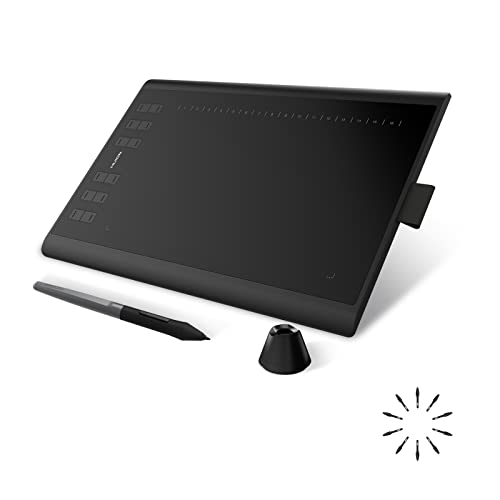
The Huion Inspiroy H1060P is the shortcut king of this group: 12 express keys plus 16 soft keys, more than any other tablet here. Its 10 x 6.25-inch active area is the largest screenless surface in the guide, the battery-free stylus offers 8,192 pressure levels with 60-degree tilt, and the textured surface gives the pen a paper-like drag. It connects by Micro-USB with a USB-C adapter in the box, and it works with Windows and Mac.
Watch out for: this is an older model in the Huion line, so confirm the listing is the H1060P with the 12-key layout. The Micro-USB connection feels dated next to the USB-C models here, and the pen has no eraser end, so erasing means switching tools on screen.
Which One Fits
Pick the XP-Pen Artist 13.3 Pro if you draw at a desk for hours and want the biggest screen, a stand, and a dial in the box. Pick the XP-Pen Artist 12 (2nd Gen) if you carry your tablet between home, class, and a studio, or if color coverage matters because your work goes to print. Pick the GAOMON PD1161 if you are buying your first pen display and want the simplest setup with the fewest controls to learn. Pick the UGEE M708 V3 if you already own a good monitor and want a large, simple screenless pad. Pick the Huion Inspiroy H1060P if your workflow lives on shortcuts and you want the most keys under your off hand.
If you are torn between the two kinds, ask where your eyes want to be. If you sketch on paper and look at your hand, a pen display will feel familiar on day one. If you already draw with a mouse and watch the monitor, a screenless pad will feel familiar and costs less for the same active area.
Common Mistakes
Buying for pressure numbers alone. All five tablets here list 8,192 pressure levels, yet they feel different in the hand. The pen sensor, the activation force, and the driver tuning decide how a light stroke behaves. Read the stylus details — the Artist 12 (2nd Gen) 3-gram activation force is the kind of figure that changes daily use more than a bigger number would.
Mapping a small pad to a huge monitor. A 10 x 6-inch pad mapped across a very large display makes small hand movements jump long distances on screen, which hurts fine detail. If your monitor is large, either pick a larger active area or set the driver to map the tablet to part of the screen.
Skipping the driver install. A tablet plugged in without its driver will usually move the cursor but ignore pressure and shortcut keys. Install the driver from the maker site for your exact model, then test pressure in your drawing software before a real session.
Ignoring the cable your computer needs. Pen displays need a video path as well as USB. Check whether your laptop has a full-featured USB-C port or an HDMI port before ordering, and note that the Artist 12 (2nd Gen) single USB-C cable is sold separately.
Expecting a standalone tablet. None of these five works on its own. Every one must stay connected to a computer, and the pen displays are screens for that computer, not tablets with their own apps. If you want to draw away from a computer entirely, you need a different class of device.
FAQ
Can I use a non-Wacom drawing tablet with Photoshop and Clip Studio Paint?
Yes. All five tablets here work with the common drawing and photo-editing programs, including Photoshop, Clip Studio Paint, Krita, and SAI, once the maker driver is installed. Pressure sensitivity and shortcut keys are handled by the driver, so keep it updated.
Do I need a pen display, or is a screenless tablet enough?
A screenless tablet is enough for most illustration, photo editing, and note-taking, and it costs less for the same active area. A pen display is worth it if you want to watch the line form under the pen tip, if you do fine detail work, or if you find the hand-eye gap of a screenless pad annoying after a week of practice.
What pen pressure level should I look for in a drawing tablet?
Look for 8,192 levels, which is the standard for the current generation of pen displays and pen tablets in this class, and pay attention to the initial activation force as well. A low activation force, like the 3-gram figure on the Artist 12 (2nd Gen), lets light strokes register without pressing hard, which matters more in daily use than a larger pressure number.
Do these tablets work with a Chromebook or an Android phone?
It depends on the model. The XP-Pen Artist 12 (2nd Gen) and the UGEE M708 V3 both list Android and Chromebook support, and the Artist 12 (2nd Gen) also lists Linux. The GAOMON PD1161 and the Huion Inspiroy H1060P list Windows and Mac support. Check the maker driver page for your exact device before buying, since phone and Chromebook support varies by model and by app.
Disclosure: As an Amazon Associate, we earn from qualifying purchases.