Our Short List of 3
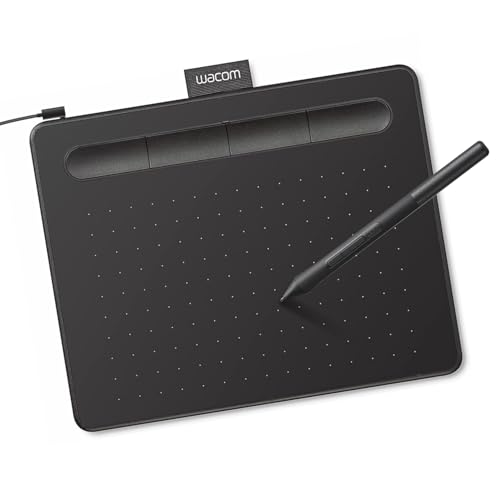
- Best for: A first-time buyer who wants proven drivers, bundled software, and a compact tablet that travels in a laptop bag.
- Active area: 6.0 x 3.7 in (152 x 95 mm)
- Pressure levels: 4096
- Pen: Battery-free EMR pen
- Shortcut keys: 4 customizable ExpressKeys

- Best for: Sketching, note-taking, and photo edits on a crowded desk or in a laptop bag.
- Active area: 6.3 x 3.9 in (160 x 100 mm)
- Pressure levels: 8192
- Pen: Battery-free PW100 stylus with tilt support
- Shortcut keys: 6 customizable hot keys

- Best for: Beginners who want a large surface and the highest listed pressure figure for detailed illustration and shading.
- Working area: 10 x 6.25 in
- Pressure levels: 16384
- Pen: Battery-free stylus with tilt up to 60 degrees
- Shortcut keys: 8 hot keys
All 4 Picks at a Glance
| Product | Specs | Action |
|---|---|---|
| Wacom Intuos Small |
| Check price on Amazon |
| HUION Inspiroy H640P |
| Check price on Amazon |
| XPPen Deco 01 V3 |
| Check price on Amazon |
 UGEE M708 V3 |
| Check price on Amazon |
Key takeaways
- Compare four beginner drawing tablets with specs from Amazon listings. Find the right active area, pen pressure, and shortcut layout for your first tablet.
A first drawing tablet asks you to give up the paper you already know how to use and trust a blank pad while your eyes stay on the screen. That hand-eye split feels strange for the first few sessions, and the wrong tablet makes it worse: a surface too small for your strokes, a pen that needs charging at the worst moment, or shortcut keys placed where your palm keeps hitting them. Getting the first tablet right is less about chasing the highest specification and more about matching the hardware to the way you actually draw.
This article is for people sketching their first digital characters, students taking notes and annotating diagrams, photo editors who want finer control than a mouse, and hobbyists returning to drawing after years away. Every tablet below was chosen from the name and specifications shown on its Amazon product page, with the active area, pen pressure, shortcut layout, and connection type taken from the listing itself.
Quick Picks
As an Amazon Associate we earn from qualifying purchases
| Product | Best for | Key spec from title |
|---|---|---|
| Wacom Intuos Small | First-time buyers who want dependable drivers and bundled software | 4 ExpressKeys, 4096 pressure levels |
| HUION Inspiroy H640P | Sketching and note-taking on a crowded desk | 8192 pressure levels, 6 hot keys |
| XPPen Deco 01 V3 | Broad strokes and detailed shading on a large surface | 16384 pressure levels, 10 x 6.25 in working area |
| UGEE M708 V3 | Long sessions at a fixed desk with plenty of shortcuts | 8192 pressure levels, 8 hot keys |
How to Choose
Active area decides how your arm moves
The active area is the part of the tablet that maps to your screen, and its size shapes every stroke you make. A compact area around 6 by 4 inches suits sketching, handwriting, and photo retouching on a laptop, because small wrist movements cover the whole screen and the tablet fits beside a keyboard. A larger area near 10 by 6 inches suits broad shoulder movements, long flowing lines, and detailed illustration on a big monitor. Before buying, measure your free desk space and decide whether you draw from the wrist or the shoulder, since a tablet that is too large crowds the keyboard while one that is too small forces constant pen repositioning.
Pen pressure and tilt shape line quality
Pen pressure decides how much control you have over line weight and opacity in a single stroke. A pen with 4096 levels already handles sketching, inking, and shading well for a beginner, and the difference between 4096 and 8192 levels is subtle until your hand learns to use the full range. Tilt support matters more than many beginners expect: it lets shading tools respond to the angle of the pen, which feels natural if you shade with the side of a pencil on paper. A battery-free pen never needs charging, so it is always ready. Check the listing for the exact pressure figure and whether tilt is supported, rather than assuming every pen behaves the same way.
Shortcut keys change how fast you work
Shortcut keys put undo, brush size, zoom, and tool switching under your off hand, so you stop reaching for the keyboard every few seconds. Four keys cover the essentials for a beginner, six keys add room for eraser and canvas rotation, and eight keys suit artists who juggle many tools in one session. The number matters less than the placement: keys along the top edge stay out of the way of your drawing hand, while keys crowded against the active area invite accidental presses. If you draw on a laptop in a classroom or on a couch, onboard keys become far more valuable than they are at a desk with a keyboard nearby.
Compatibility and connection decide where it works
A drawing tablet is only useful if it connects to the computer you already own, so confirm the operating system and connection type on the listing before ordering. Most beginner tablets work with Windows and macOS, and many add Chromebook, Linux, or Android support, which matters for students and for artists who sketch on a phone. A wired USB connection is simple and never runs out of charge, while a wireless connection keeps a small desk tidy and lets you draw away from the computer. Also confirm which drawing software the tablet supports, since driver quality differs between brands and a smooth driver saves hours of frustration in the first week.
The 4 Best Options
Wacom Intuos Small
- Best for: A first-time buyer who wants proven drivers, bundled software, and a compact tablet that travels in a laptop bag.
- Active area: 6.0 x 3.7 in (152 x 95 mm)
- Pressure levels: 4096
- Pen: Battery-free EMR pen
- Shortcut keys: 4 customizable ExpressKeys
A first-time buyer who wants proven drivers, bundled software, and a compact tablet that travels in a laptop bag.
The wired USB connection keeps the tablet tethered to the computer, and the compact active area can feel cramped for broad arm movements.
The Wacom Intuos Small is the steady first choice for a beginner who wants the tablet to disappear into the background while they learn. Its battery-free pen responds to 4096 levels of pressure, the compact surface fits beside a laptop keyboard, and four customizable ExpressKeys cover undo, brush size, and zoom without reaching for the mouse. The listing describes the tablet as designed for people getting started with drawing, painting, or photo editing, and the included software and training give a new artist somewhere to begin without buying extra programs first.
HUION Inspiroy H640P
- Best for: Sketching, note-taking, and photo edits on a crowded desk or in a laptop bag.
- Active area: 6.3 x 3.9 in (160 x 100 mm)
- Pressure levels: 8192
- Pen: Battery-free PW100 stylus with tilt support
- Shortcut keys: 6 customizable hot keys
Sketching, note-taking, and photo edits on a crowded desk or in a laptop bag.
The compact surface suits wrist drawing better than broad shoulder strokes, and the tablet does not work with iPhone or iPad.
The HUION Inspiroy H640P packs serious capability into a slim tablet that weighs about 0.61 pounds and measures only 0.3 inches thick. Its battery-free PW100 pen senses 8192 levels of pressure with tilt support, and six customizable hot keys sit along the edge for undo, zoom, and brush changes during a session. The listing describes the tablet as suitable for beginners working on drawing, animation, photo editing, and design, and the included glove helps the pen glide across the surface while spare nibs cover wear over time.
XPPen Deco 01 V3
- Best for: Beginners who want a large surface and the highest listed pressure figure for detailed illustration and shading.
- Working area: 10 x 6.25 in
- Pressure levels: 16384
- Pen: Battery-free stylus with tilt up to 60 degrees
- Shortcut keys: 8 hot keys
Beginners who want a large surface and the highest listed pressure figure for detailed illustration and shading.
The large footprint needs real desk space, and the tablet must connect to a computer or supported device because it has no screen of its own.
The XPPen Deco 01 V3 gives a beginner the largest working surface in this group, with a 10 by 6.25 inch area that leaves room for sweeping lines and detailed shading without constant repositioning. Its battery-free stylus senses 16384 levels of pressure and tilt up to 60 degrees, which gives fine control over line weight in a single stroke, and eight hot keys keep common commands under the off hand. The listing describes the tablet for sketch, design, and photo editing on Windows, Mac, Android, and Chrome devices, and the slim 8 mm body slips easily into a bag.
UGEE M708 V3
- Best for: Long drawing sessions at a fixed desk where a large surface and eight shortcut keys speed up the workflow.
- Active area: 10 x 6 in
- Pressure levels: 8192
- Pen: Battery-free P01 stylus
- Shortcut keys: 8 customizable hot keys
Long drawing sessions at a fixed desk where a large surface and eight shortcut keys speed up the workflow.
At about 1.55 pounds with a large footprint, it suits a fixed desk better than a travel bag, and Android phone support is limited.
The UGEE M708 V3 is the desk-bound workhorse of this group, built around a 10 by 6 inch active area with a paper-like textured surface. Its battery-free pen senses 8192 levels of pressure, the tablet reports 5080 lines per inch for precise cursor tracking, and eight customizable hot keys line the side for undo, zoom, brush size, and eraser. The listing describes the tablet for digital drawing, sketching, and photo editing across Windows, macOS, Linux, and Chromebook, and the box includes a pen holder, replacement nibs, and a drawing glove.
Which One Fits Your Situation
You want the safest first tablet
Pick the Wacom Intuos Small. Its drivers are the most established in this group, the bundled software and training give you a starting point on day one, and the compact body fits any desk. The 4096 pressure levels handle sketching and shading well while you learn, and the four ExpressKeys teach you a shortcut workflow without overwhelming you. If reliability matters more than surface size, this is the tablet to start with.
You draw on a small desk or on the move
Pick the HUION Inspiroy H640P. It weighs about 0.61 pounds, measures only 0.3 inches thick, and its 6.3 by 3.9 inch active area fits beside a laptop keyboard or inside a bag. The 8192 pressure levels and tilt support give you more pen control than the compact size suggests, and six hot keys keep undo and zoom close at hand. It is the easiest tablet here to carry to class or a studio.
You want room to grow into detailed work
Pick the XPPen Deco 01 V3. Its 10 by 6.25 inch working area and 16384 pressure levels give you the most room and the finest pen control in this group, so detailed illustration and shading feel natural as your skills improve. Eight hot keys and a slim 8 mm body round out a tablet that suits a dedicated drawing setup. Choose it when you know you will draw often and want hardware that will not hold you back.
You want a large surface and many shortcuts
Pick the UGEE M708 V3. Its 10 by 6 inch active area with a paper-like texture suits broad strokes and long sessions, while eight customizable hot keys keep your most-used commands under your off hand. The 5080 LPI resolution and 266 RPS report rate keep cursor tracking precise across the large surface. Choose it when the tablet will live on one desk and you want maximum space for the money.
Common Mistakes
- Buying the largest tablet available without measuring desk space, then finding the tablet crowds out the keyboard and mouse.
- Judging a tablet by pressure levels alone, when active area, tilt support, and driver quality shape the drawing experience just as much.
- Skipping the driver download and trying to draw with default settings, which leaves shortcut keys unassigned and pen pressure uncalibrated.
- Choosing a tablet that lacks support for your operating system, especially on Chromebook or Android, and discovering the mismatch after delivery.
- Expecting a screenless tablet to show your drawing under the pen, instead of learning the hand-eye coordination that comes with looking at the monitor.
Frequently Asked Questions
Do I need a screen on my first drawing tablet?
No. A screenless tablet costs less and teaches the hand-eye coordination every digital artist uses, because your hand moves on the pad while your eyes watch the monitor. Most beginners adjust within a few sessions, and the money saved can go toward drawing software. A tablet with a screen suits artists who know they struggle with the split, but it is not required to learn digital drawing.
How much active area does a beginner need?
A compact area around 6 by 4 inches suits sketching, handwriting, and photo editing on a laptop, because wrist movements cover the whole screen. A larger area near 10 by 6 inches suits broad strokes and detailed illustration on a big monitor. If your desk is small or you travel with the tablet, choose compact. If you draw from the shoulder or work on a large display, choose large.
Does higher pen pressure make drawing easier?
Higher pressure gives finer control over line weight and opacity, but it does not make drawing easier on its own. A pen with 4096 levels already handles sketching, inking, and shading well for a beginner, and the jump to 8192 or 16384 levels is subtle until your hand learns to use the range. Tilt support, pen comfort, and driver quality matter at least as much as the pressure figure.
What software works with these tablets?
All four tablets work with the major drawing programs, including Photoshop, Clip Studio Paint, Krita, and Sketchbook, because they use standard pen drivers on Windows and macOS. The Wacom Intuos Small adds bundled software and training in the box, which helps a new artist start without buying extra programs. Always confirm the exact program and operating system version on the listing before ordering.