Key takeaways
- Five streaming devices that bring modern apps, voice remotes and smooth HD playback to older TVs, from a simple HD stick to a fast premium box.
The best streaming device for an older TV is the Roku Express 4K+, because it plugs into any HDMI port, includes a high-speed HDMI cable in the box, pairs a simple home screen with a voice remote that controls TV power and volume, and plays the major streaming services in sharp high definition and 4K HDR on a set that never had smart apps of its own. An older TV is not a broken TV. The panel still works, the speakers still work, and the HDMI port still accepts a signal. What the set lacks is a modern platform: the apps on a ten-year-old smart TV stopped updating years ago, the home screen crawls, and half the services a household wants are simply missing. A streaming stick or box replaces only that missing part, and it does it for a fraction of the outlay of a new television, with no wall mount, no delivery crew, and no learning curve steeper than a single remote.
The five picks in this guide solve the older-TV problem in five different ways, and the right one depends on the set in the room and the household using it. The Roku Express 4K+ is the default pick, because it is the simplest box to set up on an older HDMI television and the easiest remote for a household that wants streaming without fuss. The Amazon Fire TV Stick HD, in its second-generation form, is the pick for a household that lives in the Alexa world and wants the slimmest stick that draws power straight from the television itself. The Google Chromecast with Google TV in its HD version is the pick for a household that wants the Google TV home screen and casting from a phone on a set that tops out at high definition. The TiVo Stream 4K is the pick for a household that wants one search across every app and a different take on recommendations, on an Android TV platform. The Roku Ultra from 2024 is the premium pick, with the fastest Roku hardware, a wired Ethernet port for a weak Wi-Fi corner, and the best remote in this guide, and it is the pick for the main living-room set that gets used every night.
Start with the How to Choose section if the set in question is genuinely old, because two checks decide everything before any device is ordered: whether the television has a free HDMI port, and whether that port and the set around it can carry the signal the device sends. A set with only composite or component inputs needs a separate HDMI-to-composite adapter, which is a different product from any pick in this guide, and a set bought before the current copy-protection standard became common can refuse some protected streams on some ports. The quick comparison table puts the five picks side by side, and each product section lists the full published specs.
As an Amazon Associate, we earn from qualifying purchases.
Table of Contents
- How to Choose a Streaming Device for an Older TV
- Quick Comparison
- 1. Roku Express 4K+
- 2. Amazon Fire TV Stick HD (2nd Gen)
- 3. Google Chromecast with Google TV (HD)
- 4. TiVo Stream 4K
- 5. Roku Ultra (2024)
- Before You Buy: Checks for Streaming Devices for Older TVs
- Frequently Asked Questions
- Conclusion
- Product and ASIN Reference
How to Choose a Streaming Device for an Older TV
Check the HDMI port first, because everything else follows from it. Every pick in this guide connects through HDMI, and that is the single requirement that decides whether the upgrade works at all. Look at the back and the side of the television for a free HDMI input, and count the ports that are already taken by a cable box, a game console, or a Blu-ray player. A set with one free port takes any pick in this guide, and a set with no free port needs a switch or a swap before any stick is ordered. Check the port label too, because some older sets mark one port as the ARC port for a soundbar, and that port is better left to the soundbar. The Roku Express 4K+ earns its place as the default pick partly on this point: it ships with a high-speed HDMI cable in the box, so a household that has lost every spare cable still has what it needs on day one. A stick that hides behind the set, like the Fire TV Stick HD, is the better shape when the ports face the wall and space is tight, while a small box on a shelf, like the Roku Express 4K+ or the Roku Ultra, is the better shape when the ports face sideways and the household wants the device where it can see the remote signal clearly.
Match the resolution to the set, not to the catalogue. An older television is usually a high-definition set, and a 4K-capable device will simply send it a high-definition picture, so buying a 4K device for a high-definition set is not a waste: the device still runs the modern apps, the faster interface, and the newer Wi-Fi, and it stays useful if the set is replaced later. But there is no reason to pay the premium tier for 4K output on a set that cannot show it, which is why the two high-definition picks in this guide, the Fire TV Stick HD and the Chromecast with Google TV in HD form, exist at all. They are built for exactly this room: a set that tops out at high definition, where the household wants smooth playback and a modern home screen rather than pixels the panel cannot display. The Chromecast HD is the purest version of that idea, because it never pretends to be a 4K device, while the TiVo Stream 4K and the Roku Ultra are the picks for the household whose older set is actually an early 4K television with a dead smart platform, or for the household that plans to move the device to a newer set later. Decide which set the device will live on for the next few years, and buy the resolution that set can show.
Mind the copy-protection standard on very old sets. Streaming services protect their content with a copy-protection handshake between the device and the television, and sets bought before that standard became universal can fail the handshake on some apps. The practical symptom is a black screen or an error message on a protected title while the home screen works fine, and it is the one problem in this guide that no streaming device can fix on its own. If the set dates from the early years of HDMI, check the manual or the maker support page for the copy-protection version the ports support, and try the device on each HDMI port, because ports on the same set do not always behave identically. This is also the reason to keep the receipt and the return window in mind for the first week: plug the device in, open the two or three services the household actually watches, and play a protected title on each before deciding the upgrade is done. A device that plays the home screen but not the films has not finished the job.
Count the remote problem, because the remote is the daily experience. An older television already has a remote, and the streaming device adds a second one, so the household either juggles two remotes or buys a device whose remote can control the television as well. The Roku Express 4K+, the Fire TV Stick HD, the Chromecast with Google TV, and the Roku Ultra all ship with remotes that control TV power and volume, which is the feature that turns two remotes into one for most households. The Roku Ultra goes furthest, with a rechargeable backlit remote that answers voice commands without a button press and helps the household find it when it slips between the cushions. The TiVo Stream 4K remote is the outlier in a good way: it keeps the classic TiVo peanut shape and puts search and guide functions where a long-time TiVo household expects them. Think about who will use the set most. A household with older viewers or children wants the simplest remote with the fewest buttons, and that points to the Roku Express 4K+. A household that already talks to a voice assistant wants the remote that matches the assistant it already uses, and that points to the Fire TV Stick HD for Alexa households and the Chromecast for Google households.
Check the Wi-Fi before blaming the device. An older television usually sits in the room where the Wi-Fi is weakest, because the set was placed for viewing, not for signal, and a streaming device that buffers is usually a Wi-Fi problem rather than a device problem. The picks in this guide split on this point in a useful way. The Roku Express 4K+ and the TiVo Stream 4K use dual-band Wi-Fi, which gives the household a choice between the longer reach of the lower band and the faster speed of the higher band. The Fire TV Stick HD and the Chromecast with Google TV use modern Wi-Fi standards that hold a steadier connection on a busy home network. The Roku Ultra is the only pick with a wired Ethernet port, and that port is the honest answer for a living room where the wireless signal has always been flaky: a cable from the router to the box removes the Wi-Fi question entirely. Before ordering, stand where the television sits and check the wireless signal on a phone. If the signal is weak there, either plan on the Ultra with a cable, or plan on moving the router or adding a mesh point, because no stick can stream smoothly through a dead zone.
Think about the platform, because the household will live in it. A streaming device is not just a plug; it is a home screen, an app store, a search system, and a voice assistant, and the household will spend more time inside that platform than inside any single app. Roku is the simplest platform in this guide, with a plain grid of apps and very little to learn, which is why both Roku picks suit households that want streaming to feel like changing channels. Fire TV is the platform for a household that already uses Alexa and Prime Video, with voice search woven through the home screen. Google TV is the platform for a household that lives in Google services and casts from phones and tablets, with recommendations built around what the household already watches. Android TV, as it appears on the TiVo Stream 4K, is the platform for a household that wants one search across every service and does not mind a home screen with more going on. There is no wrong answer here, only a mismatch: the household that buys into the wrong platform will fight the home screen every night, while the household that buys into the platform it already uses will forget the device is even there. Pick the platform first, and the device second.
Plan the power, because an older set may not power the stick. A streaming stick needs power, and the tidiest source is the television USB port, which turns the stick on and off with the set. The Fire TV Stick HD in its second-generation form is built for exactly this: it draws power from the television USB port through a short USB-C cable, so there is no wall adapter and no cable snaking to an outlet. The other picks in this guide ship with a wall adapter, and that is the safer choice on an older set, because some older USB ports deliver too little power for a stick, or cut power in a way that makes the stick reboot slowly. If the plan is to power from the television, check that the USB port is live when the set is on, and watch the first week for slow starts or restarts, which are the signs the port is underpowered. A wall adapter costs one outlet and removes the question, and for a set that lives in a cabinet with a power strip nearby, it is usually the simpler answer.
Quick Comparison
| Product | Max resolution | Platform | Wi-Fi | Remote | Tier |
|---|---|---|---|---|---|
| Roku Express 4K+ | 4K HDR | Roku | Dual-band | Voice remote with TV controls | Budget |
| Amazon Fire TV Stick HD (2nd Gen) | 1080p HD | Vega OS with Fire TV experience | Wi-Fi 6 | Alexa Voice Remote with TV controls | Budget |
| Google Chromecast with Google TV (HD) | 1080p HD | Google TV | Wi-Fi 5 | Voice remote with TV controls | Budget |
| TiVo Stream 4K | 4K UHD | Android TV | Dual-band | TiVo voice remote | Mid-range |
| Roku Ultra (2024) | 4K HDR | Roku | Wi-Fi 6 | Rechargeable backlit Voice Remote Pro | Premium |
1. Roku Express 4K+
The Roku Express 4K+ is the streaming device to buy first for an older TV, because it plugs into any HDMI port, includes a high-speed HDMI cable in the box, pairs a plain grid home screen with a voice remote that controls TV power and volume, and plays the major streaming services in sharp high definition and 4K HDR on a set that never had smart apps of its own. The Express 4K+ is a small box rather than a stick, and that shape is part of the case for an older set: it sits on a shelf or beside the television where the remote signal reaches it cleanly, it does not crowd a tight HDMI port against the wall, and it does not hang from a port that was never built to carry weight. The included HDMI cable removes the most common setup surprise on an older set, which is discovering that every spare cable in the house is already in use somewhere else.
The platform is the practical advantage. Roku is the simplest home screen in this guide, with apps laid out in a plain grid, a search that looks across services, and a large catalogue of free live channels alongside the paid services a household already subscribes to. That simplicity matters more on an older set than on a new one, because the household buying this device is usually buying it for someone who found the old smart platform confusing or slow, and the Express 4K+ answers that with a remote that has a small number of clearly marked buttons and a voice button for finding a show by speaking its name. The dual-band Wi-Fi gives the household a choice between the longer reach of the lower band and the faster speed of the higher band, which is useful in a room where the router sits two rooms away. The device supports HDR10+ and HLG high dynamic range, so an early 4K set that still has a good panel gets a better picture than the old built-in apps ever delivered. Buy the Express 4K+ if the household wants the simplest setup in this guide, a remote that replaces the TV remote for power and volume, and a device that works on a high-definition set today and a 4K set tomorrow.
The Express 4K+ also suits the household that is upgrading more than one older set, because the same simple platform on every television means nobody has to learn a new home screen in the bedroom after learning it in the living room. The box is small enough to move between rooms, and the guided setup walks through the Wi-Fi password and the channel lineup without jargon. The trade is speed and extras: this is not the fastest Roku, it has no wired Ethernet port, and it has no headphone jack on the remote for private listening. A household that wants the fastest Roku and the wired port should look at the Ultra instead. Buy the Express 4K+ if the household wants the default pick for an older TV, and buy the Ultra only if the living-room set earns the premium hardware.
Specs
- Max resolution: 4K HDR, with HDR10+ and HLG
- Platform: Roku
- Connectivity: dual-band Wi-Fi, HDMI output, high-speed HDMI cable included
- Remote: voice remote with TV power and volume controls
- Audio: pass-through for surround sound formats supported by the set
- Power: wall adapter included
- Form: compact box for shelf placement
- Tier: Budget
2. Amazon Fire TV Stick HD (2nd Gen)
The Amazon Fire TV Stick HD in its second-generation form is the pick for an older TV in an Alexa household, because it is the slimmest Fire TV stick yet, it draws power straight from the television USB port through a short USB-C cable, it runs the new Fire TV experience with streamlined navigation, and it turns a high-definition set into a modern streaming television without a wall adapter or a cable trailing to an outlet. The slim shape is the detail that sets this pick apart on an older set: at a fraction of the width of earlier sticks, it fits HDMI ports that face the wall or sit in a crowded recess, and the short USB-C cable keeps the whole installation behind the set instead of draped across the cabinet. The direct power feature is the practical advantage for a household that has no free outlet near the television, because the stick switches on and off with the set and never needs a separate plug.
The platform is the other half of the case. The second-generation stick runs the new Fire TV experience, which puts movies, shows, and live TV a short step from the home screen, and the Alexa Voice Remote controls TV power and volume alongside voice search, so the household can ask for a show by name and put the old TV remote in a drawer. The stick plays high-definition video with HDR10, HDR10+, and HLG, which covers the formats an older high-definition set can show, and the Wi-Fi 6 radio holds a steadier connection on a busy home network than the older Wi-Fi in the set it replaces. The 8 GB of internal storage holds the apps a household actually uses, and the quad-core processor keeps the home screen moving at a pace the old built-in platform never managed. Buy the Fire TV Stick HD if the household already uses Alexa, wants the tidiest installation in this guide, and owns a high-definition set that needs a modern platform rather than more pixels.
The second-generation stick also suits the household that travels with its streaming device, because the slim stick and the short cable pack into a bag and plug into a hotel or guest-room television as easily as into the set at home. The trade is the platform lock-in: this generation runs Vega OS, which does not support installing apps from unknown sources, so a household that depends on an app outside the Amazon Appstore should check that the app is listed there before ordering. The stick is also a high-definition device, so a household with an early 4K set that wants the full 4K output should look at the Express 4K+ or the Ultra instead. Buy the Fire TV Stick HD if the household wants the simplest Alexa upgrade for a high-definition set, and buy the Express 4K+ if the household wants a device that also covers 4K.
Specs
- Max resolution: 1080p Full HD, with HDR10, HDR10+, and HLG
- Platform: Vega OS with the new Fire TV experience
- Connectivity: Wi-Fi 6, Bluetooth 5.3, HDMI output, USB-C
- Storage: 8 GB internal
- Processor: quad-core 1.7 GHz
- Remote: Alexa Voice Remote with TV power and volume controls
- Power: direct power from the TV USB port via USB-C cable
- Form: slim stick, the slimmest Fire TV stick yet
- Tier: Budget
3. Google Chromecast with Google TV (HD)

The Google Chromecast with Google TV in its HD version is the pick for an older high-definition TV in a Google household, because it brings the Google TV home screen, a voice remote with TV controls, and casting from a phone or tablet to a set that tops out at high definition, without asking the household to pay for 4K output the panel cannot show. The HD version is the honest version of this device for this guide: it plays the same apps, shows the same recommendations, and answers the same voice commands as its 4K sibling, and it does it at the resolution the older set was built for. That focus is the practical advantage, because the household gets the full Google TV experience, including personalised rows of shows drawn from the services it already uses, on a television that was never meant to show more than high definition.
The casting feature is the detail that sets this pick apart. A household that already watches video on a phone can send it to the television with a tap, without opening an app on the television at all, and a household with photos or music on a phone can put them on the big screen the same way. The Google TV home screen gathers shows and films from across the installed apps into one place, so the household browses what to watch instead of browsing which app to open first. The voice remote controls TV power and volume, and the voice button searches across services and answers everyday questions through the Google Assistant. The 8 GB of internal storage holds the apps a household actually uses, and the Wi-Fi radio keeps the stream steady on a home network that also serves phones, laptops, and tablets. Buy the Chromecast with Google TV in HD form if the household lives in Google services, casts from phones often, and owns a high-definition set that needs a modern home screen rather than more pixels.
The Chromecast HD also suits the household that shares one set between viewers with different tastes, because the Google TV home screen builds separate rows and recommendations around each profile, and the casting habit means each viewer can queue a show from a personal phone without taking over the television remote. The trade is resolution and storage: this is a high-definition device with a modest amount of storage, so a household that installs many apps will need to manage what stays installed, and a household with an early 4K set should look at the 4K-capable picks instead. Buy the Chromecast HD if the household wants the Google TV platform on a high-definition set, and buy the Express 4K+ if the household wants a simpler grid home screen with 4K output.
Specs
- Max resolution: 1080p HD, with HDR support
- Platform: Google TV
- Connectivity: Wi-Fi 5, Bluetooth, HDMI output, USB-C power
- Storage: 8 GB internal
- Remote: voice remote with TV power and volume controls, Google Assistant built in
- Casting: cast video, music, and photos from a phone or tablet
- Form: compact stick with a short cable
- Tier: Budget
4. TiVo Stream 4K
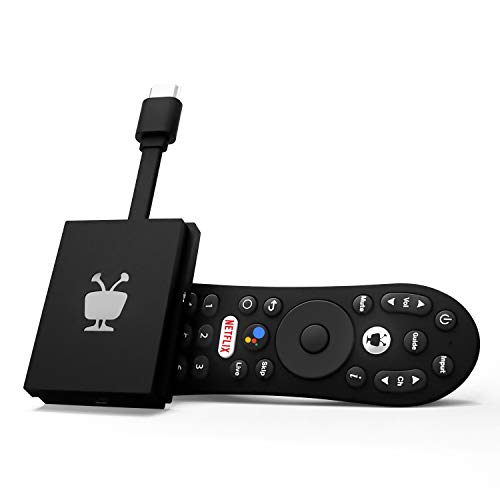
The TiVo Stream 4K is the pick for an older TV in a household that wants one search across every app, because it runs Android TV, plays 4K UHD video with Dolby Vision HDR and Dolby Atmos sound, and puts TiVo recommendations and a unified guide on a set whose built-in platform stopped being useful years ago. The search is the detail that sets this pick apart: instead of opening each app in turn to find a show, the household searches once and sees where the show lives, which services carry it, and what it will cost to watch, and the TiVo home screen builds watchlists and recommendations across services rather than inside one app at a time. That matters most on an older set, because the household buying this device usually subscribes to several services and is tired of hunting through each one separately.
The hardware is the other half of the case. The small dongle plugs into an HDMI port and hides behind the set, the dual-band Wi-Fi keeps the stream steady, and the 8 GB of internal storage holds the apps a household actually uses. The Dolby Vision HDR and Dolby Atmos support cover the formats an early 4K set with a good panel and a soundbar can actually show and play, so the device is not wasted on a set that predates the current generation of televisions but still has a strong picture. The TiVo voice remote keeps the classic peanut shape that long-time TiVo households recognise, with a guide button and a dedicated search key where the thumb expects them, and it controls TV power and volume alongside the streaming functions. Buy the TiVo Stream 4K if the household subscribes to several services, wants one search and one watchlist across all of them, and owns a set that can show 4K HDR.
The TiVo Stream 4K also suits the household that likes to shape its own setup, because the Android TV platform supports a wide range of apps beyond the major services, and the dongle form means it moves to a second set as easily as it plugs into the first. The trade is polish and longevity: the Android TV home screen carries more on it than the plain Roku grid, the device is an older design than the other picks in this guide, and the listing record reviewed here is older than the records for the other picks, so the live page deserves a glance before ordering to confirm the seller and the availability. A household that wants the simplest home screen in this guide should look at the Express 4K+ instead. Buy the TiVo Stream 4K if the household wants unified search and recommendations above all else, and buy the Express 4K+ if the household wants the plainest home screen.
Specs
- Max resolution: 4K UHD, with Dolby Vision HDR
- Platform: Android TV
- Connectivity: dual-band Wi-Fi, Bluetooth, HDMI output, USB-C power
- Storage: 8 GB internal
- Audio: Dolby Atmos sound
- Remote: TiVo voice remote with TV power and volume controls
- Form: compact dongle for HDMI placement
- Tier: Mid-range
5. Roku Ultra (2024)

The Roku Ultra from 2024 is the premium pick for an older TV, because it pairs the fastest Roku hardware with a wired Ethernet port, a rechargeable backlit Voice Remote Pro with hands-free voice and a lost-remote finder, and 4K HDR playback with Dolby Vision and Dolby Atmos, so the main living-room set gets the strongest streaming upgrade in this guide. The speed is the practical advantage on an older set: apps open faster, the home screen moves without the lag the old built-in platform taught the household to expect, and the faster processor keeps the interface smooth even when the household jumps between live TV, a film, and a music app in one evening. The wired Ethernet port is the honest answer for the living room where the Wi-Fi has always been weak, because a cable from the router to the box removes the wireless question entirely, and the Wi-Fi 6 radio covers the household that prefers wireless but wants the newest standard.
The remote is the detail that sets this pick apart. The Voice Remote Pro is rechargeable, so there are no batteries to replace, it is backlit, so the buttons are visible in a dark room, it answers voice commands without a button press, so the household can ask for a show from across the room, and it plays a sound when the household asks where it is, so the remote stops disappearing between the cushions. The box also carries a USB port for playing personal media from a drive, and an HDMI 2.1 output that covers the fastest connection an older set or a newer set can use. The Dolby Vision and HDR10+ support cover the high dynamic range formats an early 4K set can show, and the Dolby Atmos support covers the soundbar or receiver the household may already own. Buy the Roku Ultra if the household wants the fastest Roku, a wired connection for a weak Wi-Fi corner, and the best remote in this guide, and if the set in question is the one the household watches every night.
The Roku Ultra also suits the household that is upgrading the main set once and wants the upgrade to last, because the premium hardware, the wired port, and the rechargeable remote are the parts that keep a streaming device feeling new for years rather than months. The trade is the tier: this is the premium pick in this guide, and a household with a bedroom set or a guest-room set will get almost everything it needs from the Express 4K+ at the budget tier. The Ultra is also a box rather than a stick, so it needs a shelf or a surface near the set, and a household with no space beside the television should look at one of the stick picks instead. Buy the Roku Ultra if the household wants the strongest streaming upgrade for its main older set, and buy the Express 4K+ if the household wants the same Roku platform on a second set.
Specs
- Max resolution: 4K HDR, with Dolby Vision and HDR10+
- Platform: Roku
- Connectivity: Wi-Fi 6, Ethernet port, HDMI 2.1 output, USB port
- Audio: Dolby Atmos sound
- Remote: rechargeable backlit Voice Remote Pro with hands-free voice and lost-remote finder
- Power: wall adapter included
- Form: compact box for shelf placement
- Tier: Premium
Before You Buy: Checks for Streaming Devices for Older TVs
Check the live offer, because listing records lag. The Fire TV Stick HD in its second-generation form rests on retailer listings from November 2026 showing it in stock, which is the freshest evidence in this guide. The Roku Express 4K+ rests on Amazon listing data with a deal listing from late October 2026, and the Roku Ultra rests on an Amazon listing that shows it shipped and sold by Amazon itself. The Chromecast with Google TV in HD form rests on an Amazon listing record about 228 days old, and the TiVo Stream 4K rests on the oldest record here at about 200 days, so those two deserve the closest glance at the live page before ordering, to confirm the seller and the availability. A device that was widely stocked a year ago can be a third-party listing today, and the seller matters as much as the model name.
On safety recalls, no pick in this guide is covered by one. A search of the federal recall record found no CPSC recall naming any of the five picks or their model families as a covered product. That search covered the streaming-device class as a whole and each maker in turn, and the only streaming-related recall record that surfaced was a 2011 joint recall of the Pogoplug Video file-sharing device, a desktop box that could overheat, which is a different product from every pick in this guide and is not made by any maker in this guide. The practical lesson is the same one that record carries: buy the device from a seller the household recognises, use the power adapter or cable that ships in the box, and keep the device where air can move around it rather than buried in a closed cabinet. None of the five picks is covered by a recall, and none of them needs a workaround to use safely.
Test the protected streams in the first week. Plug the device in, connect the Wi-Fi or the Ethernet cable, and open the two or three services the household actually watches. Play a protected title on each, not just the home screen, because the copy-protection handshake between the device and an older set is the one failure that only shows up on a real title. Try a different HDMI port if one service refuses to play while the others work, because ports on the same set do not always behave identically, and keep the return window in mind until every service the household pays for has played a full title without an error.
Set up the remote to replace the old one. Pair the voice remote with the television during setup, and test power and volume from the new remote before putting the old remote away. A remote that controls the set as well as the streamer turns two remotes into one, and that is the difference between an upgrade the household uses every night and an upgrade that adds clutter to the coffee table. If the remote cannot control an older set, check the device settings for the TV brand and model, because the remote database covers more sets than the quick setup suggests.
Give the device air and a stable power source. A streaming stick hidden behind a warm television in a closed cabinet can run hot and restart, and a stick powered from an underpowered USB port on an older set can do the same. Use the wall adapter that ships in the box when the set is older, keep the device where air can move around it, and watch the first week for slow starts or restarts, which are the signs the power or the heat needs attention. A device that restarts once a week is telling the household something about its placement, not about its quality.
Frequently Asked Questions
Will a streaming device work on a TV without smart apps?
Yes, and that is exactly the set these devices are built for. A television without smart apps still has an HDMI port, and the streaming device supplies the apps, the home screen, and the remote. Plug the device into the HDMI port, connect it to Wi-Fi, sign in to the services the household uses, and the set behaves like a modern smart television. The only sets that need something more are sets with no HDMI port at all, which need a separate HDMI-to-composite adapter before any pick in this guide can connect.
Do I need a 4K streaming device for an older HD TV?
No, but a 4K device still works well on a high-definition set. The device simply sends a high-definition picture the set can show, and the household still gets the modern apps, the faster interface, and the newer Wi-Fi. The high-definition picks in this guide, the Fire TV Stick HD and the Chromecast with Google TV in HD form, exist for households that want to match the device to the set and keep the outlay at the budget tier. Buy the 4K device if the household plans to move it to a newer set later, or if the older set is actually an early 4K television.
Can one remote replace the TV remote?
In most households, yes. The Roku Express 4K+, the Fire TV Stick HD, the Chromecast with Google TV, and the Roku Ultra all ship with remotes that control TV power and volume, and the TiVo Stream 4K remote does the same. Pair the remote with the television during setup and test power and volume before putting the old remote away. A very old set may not respond to every command, in which case the household keeps the old remote for power and uses the new remote for everything else.
Will my older TV play protected shows from a streaming stick?
Usually yes, but very old sets can fail the copy-protection handshake on some services. The symptom is a black screen or an error on a protected title while the home screen works fine. Try a different HDMI port, because ports on the same set do not always behave identically, and test the services the household actually watches in the first week, before the return window closes. If a service still refuses to play on every port, the set itself is the limit, and no streaming device in this guide can change that.
Conclusion
The Roku Express 4K+ is the streaming device to buy first for an older TV: a small box that plugs into any HDMI port, includes its own cable, pairs a plain home screen with a voice remote that controls the set, and plays the major services in high definition and 4K HDR. The Amazon Fire TV Stick HD in its second-generation form is the pick for an Alexa household that wants the slimmest stick and power straight from the television. The Google Chromecast with Google TV in HD form is the pick for a Google household with a high-definition set that casts from phones. The TiVo Stream 4K is the pick for a household that wants one search and one watchlist across every service. The Roku Ultra from 2024 is the premium pick for the main living-room set, with the fastest Roku hardware, a wired Ethernet port, and the best remote in this guide. Check the HDMI port first, match the resolution to the set, test the protected streams in the first week, and any of the five will give the older television a modern streaming life.